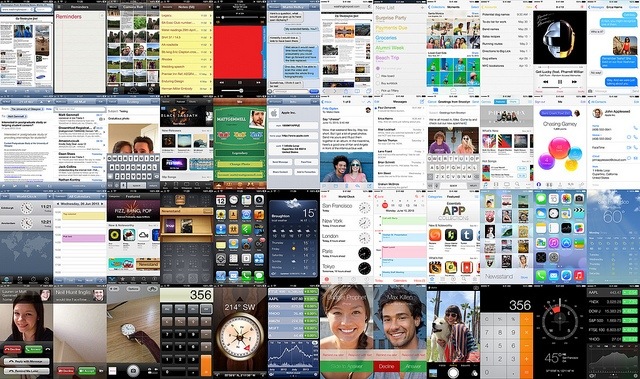
Deeper into iOS 7

20130613-184011.jpg
Image: Matt Gemmell

After putting in my two cents worth on the day iOS 7 was unveiled at WWDC 2013, I have had the opportunity to read quite a number of articles examining Apple’s overhaul of it’s mobile operating system. Two pieces I felt best captured the essence of the planned transition, over and above the usual nuts and bolts lists, were written by Federico Viticci and Matt Gemmell.

In iOS 7 Thoughts and Questions, Federico provides some very thoughtful and in-depth analysis on both the design and function of iOS 7, indicating how the changes go well beyond a surface only re-design, noting iOS 7 provides a good platform for even further growth and future development of the operating system:

And that is, I believe, why Apple said that iOS 7 isn’t simply change, it’s a new beginning. It’s not an understatement: iOS 7 is not about the icons, labels as buttons, translucency, questionable Lock screen gestures, or a new Spotlight as design choices taken individually – it’s about a single, precise idea: to make iOS simpler and more enjoyable, but at the same time more useful.

and:

But there’s one thing I’m sure of: to paraphrase yesterday’s demo, we should look beyond the icons. iOS 7 will be defined by its overall design language, user features, and developer technologies. In many ways, this is version 1.0 of an OS for the next five years.

While acknowledging iOS 7 is indeed more than just a new look, Matt provides a fantastic side by side comparison of the differences between what we currently use in iOS 6 and what was unveiled a couple of days ago at WWDC. In his usual eloquent way, Matt explains while many of the changes may appear related simply to colour, flatness or borders for example, these are very specific changes that were made to enhance function first, and were achieved through very well thought out changes in form.

iOS 7 is a decluttering of the most exciting, profitable, desirable mobile operating system available. It’s a shift away from artefact, and back to essence. It indicates a clarity of vision, and a continued willingness to pursue simplicity ruthlessly.

Gone are embellishments like gloss and bevelled edges, shadows and borders. Visually dead areas that provoke tension rather than inspiring relaxation. Weight that suffocates, rather than open air to breathe.

On the issue of unfamiliarity, and “alienating” current users (some 600 million at last count):

The thing is, we’ve grown up. We don’t require hand-holding to tell us what to click or tap. Interactivity is a matter of invitation, and physical cues are only one specific type. iOS 7 is an iOS for a more mature consumer, who understands that digital surfaces are interactive, and who doesn’t want anything getting in the way of their content.

Both articles provide insightful and well considered analysis, after the crash and bash of initial opinions that were fired out immediately after the WWDC keynote address two days ago.

iOS 7 : Thoughts and Questions by Federico Viticci
iOS 7 by Matt Gemmell

Apple announces iOS 7

Apple has just announced a substantial overhaul of its mobile operating system in the WWDC 2013 Keynote address. The Apple homepage has been updated with an overview of iOS 7

My picks? The UI in general, control center for rapid access to settings, iTunes radio (ad-free for iTunes Match subscribers which is a nice touch), and updates to the Photos and Safari apps. A great new feature will also be automatic App updates occurring in the background – goodbye “update all” button.

Looking forward to the update later in the year.

Worth a look. +

Byword

Untitled

There’s nothing more enjoyable than seeing a major update come through for one of your favourite apps, recently the case with Byword. As stated by the developer, Byword is a simple and efficient text editor for the Mac, iPhone and iPad, allowing you to write, sync documents (Dropbox, iCloud), and now directly publish – one of the main changes in version 2.0. What follows below has a focus on iOS, which is where I exclusively use this app.

Untitled

Publish
Via a once only in-app purchase of $5.49 (AUD) which enables the feature on both iPhone and iPad versions, Byword now has an option to publish your words directly to blogging platforms Tumblr, Blogger, Scriptogram, and of course WordPress, which is exactly how this article has been posted. This feature also enables integration directly with the notebooks in your Evernote account. I particularly like this feature as it allows me to easily archive any posts (or drafts that may not have made the cut and will be subsequently reviewed) for later reference. More about this in a future post when I will outline my writing and publishing workflow.

Essentially, posting an article to WordPress is now as simple as opening Byword, drafting the post, adding any required images or links, and choosing publish in settings. You will be asked which linked service you would like to publish to, and for WordPress, be given options for status, tags and categories which you may have set up on your site. The only downside is that the integration does not automatically populate categories or tags, you’ll need to remember what you have set up.

Once done, I can then sit back and marvel at the eloquent prose I have unleashed into the world. Or, as reality would have it, see the dozen or so typographical and grammatical errors I had somehow missed in multiple proof reads, which must then be edited and reposted. Those not requiring post-publish editing have generally been proofread by the dept4 editorial team (wife and children).

Byword Screenshots

Byword Screenshots

Byword Screenshots

Syncing
In what can only be described as a master stroke of irony, this paragraph had been written extolling the virtues of Byword’s syncing abilities, however a few seconds after the following screenshots were taken, choosing to accept the remote (iPhone) copy of this draft resulted in an unexpected shut down of Byword, leaving me with the local copy, containing none of my additions or edits made on this mornings bus commute. Though I cannot completely rule out user error, no incorrect tap should have caused a crash. Hopefully this was just an isolated event occurring on initial use of this feature, and I have subsequently added further text on my iPhone, iPad and iPhone again which have synced perfectly through Dropbox. I have also previously experienced robust syncing through iCloud.

As I have noted above, and is seen in the screenshots below, a new syncing feature is the ability to preview version conflicts, allowing an informed decision about which to keep – a nice addition, as I will often start a post on my iPad, edit further on my iPhone, finalising the article when back on the iPad.

Byword Screenshots

Byword Screenshots

Byword Screenshots

Why Byword?

Quite simply, I enjoy writing in Byword as it provides enough additional features (including an extra row on the keyboard with commonly used Markdown keys, cursor placement, and buttons to insert images and links) to reduce the friction of writing, yet avoids distractions to getting words on the page. Support for writing in Markdown is essential in getting posts up on my site, and I am certainly looking forward to utilising the publish to WordPress feature rather than copying and pasting the HTML to WordPress which was my standard process. Byword is available now in the App Store

Check out a great review (as usual) of this update by Federico Viticci at Macstories, and on a side note, I cannot wait for this.

Using Day One to Track Workouts

I have always struggled to find an easy to use, yet accurate method of tracking exercise sessions, whether they be resistance training or cardiovascular in nature. Various attempts at simple or more complex spreadsheets, dedicated apps, or even pen and paper have inevitably been shelved due to an inability of myself or the tools to do the job the way I have in my mind.

Untitled

Enter Day One, primarily a journalling app, which is both a Mac and universal iOS app that I have found to be an ideal solution for this purpose. I tend to input workout data on my iPhone and review on my iPad.

As far as my workouts are concerned, these are generally either home based resistance training sessions conducted in the early morning darkness of the back yard (EZ bar, dumbbells, resistance bands, anything else I can dip on or hang from), or sprint running sessions in similar lighting (or lack thereof) at the local high school. Either way, I do find it beneficial to track these for self satisfaction at having completed another session, as a reference to check progress, or to set weights for the next session.


Resistance Training

Though a whole post (if not a series) is required to adequately describe my use of the app Drafts, this is the starting point for the resistance sessions. They are titled according to the type of workout, for example Weights for time – 21/16 or Weights for strength. The 21/16, refers to a 2 lap circuit, the first of which has 21 repetitions, with the second set containing 16. I generally do 4–5 exercises per session.

Once the exercises and weights for each are written in Drafts, it is simply a matter of starting the stopwatch, and noting whether the repetitions were met in one effort or broken up into multiple efforts to reach the rep total. For example, if Deadlifts took, 3 efforts to reach 21 reps in the first round and 2 efforts to reach 16 reps in the second, we then have as follows

Deadlifts 40kg
3/2

Each exercise and results are completed in the above manner in Drafts. Upon completion of the session, the time is then recorded in the title of the Draft, thus for a session of 19 minutes and 6 seconds, the title appears as follows:

Weights for time 21/16 – 19:06

I have included a screenshot below of a completed workout, which was a 16/9 circuit that day.

Untitled


Walking/Running Sessions

As I mentioned above, these sessions are undertaken at the local high school oval, where at 5am it is pitch black, and I am relying on my inherent knowledge that the track is flat and even, as I certainly have no way of seeing where my feet are being placed – I guess it makes things a little more interesting.

These sessions are therefore titled School Run in Day One and are originally generated in Runkeeper, which gives me total distance, total time, and average min/km pace (though average pace is really not important as a large part of the total time is spent walking to the school oval for the sprint repetitions) Calories burnt are really not of interest to me. At the completion of the session I snap a screenshot of the Runkeeper summary, and add this to Day One, along with manually recording the sprint repetitions.

The screenshot below shows a session which involved six 30m efforts and two 200m efforts.

Untitled


Overview of Entries

Once each session is completed, and sent to Day One from either Drafts or the Runkeeper screenshot, Workout tags are added to both types of session, with a second tag containing either Weights or Walk_Run, to enable a second level of filtering.

Day One Screenshots

Untitled


Advantages of Using Day One

Ease of Use – Primarily I find Day One to be the best means of recording workout information due to it’s ease of use, which is certainly enhanced by using Drafts and Runkeeper in combination. I acknowledge the simplicity of information I record may be limiting for those used to maintaining a more detailed exercise log, however the more time I have to spend on data input increases the likelihood I will not record anything at all.

Additional Information
Along with the actual workout information contained therein, Day One automatically time and date stamps the entry, which I find quite helpful as I do not want to spend time adding this when it can be automated. Though not critical, it is a nice addition to have the location and weather also recorded (perhaps using a cold day as an excuse for poor performance?)

Support
The information recorded in Day One can be modified or viewed on all Mac / iOS devices through Dropbox or iCloud syncing, with entries able to be exported as a PDF file also. Markdown is supported for text entry, and a nice touch is that hashtags in text are converted to native tags when entered in Day One.

Though there a many uses for Day One, the outline above demonstrates what has been working really well for me for some time now. I do also use it for it’s intended purpose of journalling, even if my entries are few and far between.

Day One is available at the App Store now.