Just say no to iCloud Drive – for now

With the pending release of iOS 8 on September 17 and the subsequent availability of iCloud Drive as part of the upgrade, fair warning from some of the development and Apple press community.

You can go back and upgrade at any time, but unless you want a file-syncing nightmare on your hands, you’ll wait for Yosemite’s official release.
Macworld

As iCloud drive requires iOS 8 (let’s assume you will be upgrading) soon to be available, and OS X Yosemite which is currently not available, Mac and iOS devices will not sync through iCloud Drive if you are running an iOS 8 and OS X Mavericks (or earlier) combination.

Therefore, when upgrading to iOS 8 – select the Not Now option when confronted with the iCloud Drive screen during the installation process (once Yosemite is on your Mac, iCloud Drive can then be activated on all your devices).

Don’t use iCloud or don’t own and sync with a Mac? – upgrade and embrace iCloud Drive until your heart’s content.

Read more from two developers here:

FAQ: iOS 8 & iCloud Drive
iCloud Changes in iOS 8

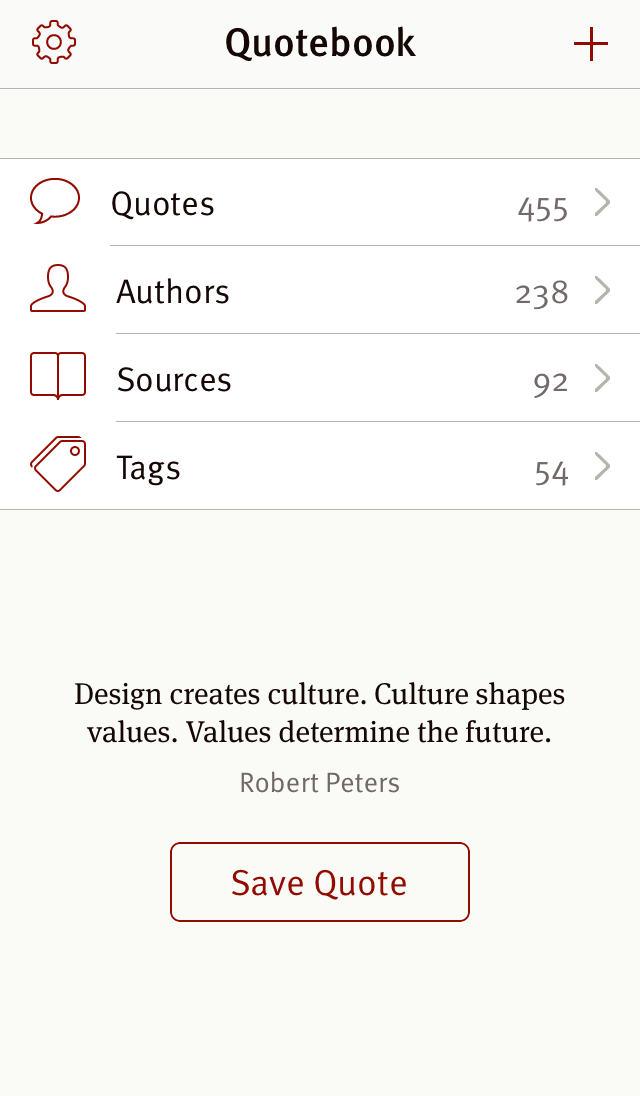
Quotebook 3 for iOS

The sign of a great app? It does what it sets out to do, does it reliably and efficiently, and looks great while doing it.

Icon SmallWhen news of a major update to the iOS app Quotebook appeared in my Twitter feed recently, it made me realise what a great app Quotebook is. Why? Because it fits all the above criteria, and made me immediately think “an update, that’s always most welcome, but it didn’t really need one”. Further, though I was happy to retweet this news noting it was one of my “favourite apps”, I could not recall specifically the last time I had used it. Oh, it will never be deleted, and contains some of my favourite quotes, however again the sign of a great app – it is there for a purpose, and there when I need it.

What initially drew me to Quotebook (probably a couple of years ago now) was the specificity of it’s purpose. Sure, I could have saved some quotes in a notebook or with a tag in Evernote; kept them as text files in Dropbox or Drafts; or even tabled them in a spreadsheet, which I have also done in the dim distant past. Quotebook seemed like the perfect solution to keep these pieces of text together with their author and source if necessary.

I admit, at times specificity in an app can be limiting, however in this case it is spot on. Look at what you need after all: the quote; the attribution for the author or speaker; the source; and tags to group quotes should you desire. Add a great looking interface and seamless syncing between my iPad and iPhone, and there you have it – a favourite app. Remember, that was before the update.

We now welcome Quotebook 3, which has been completely redesigned from the ground up, by developer Lickability:

Quotebook 3 is our biggest release ever. We’ve completely redesigned and rewritten the app, making it easier than ever to collect your favourite quotes and give them context and personality.

  • Fully rewritten iCloud syncing
  • Add images and descriptions to authors and sources
  • Information about your authors and sources is automatically downloaded from Wikipedia
  • Auto-complete authors, sources, and tags from within the app, your contacts, and your music library
  • Import quotes from your Tumblr posts and Facebook profile
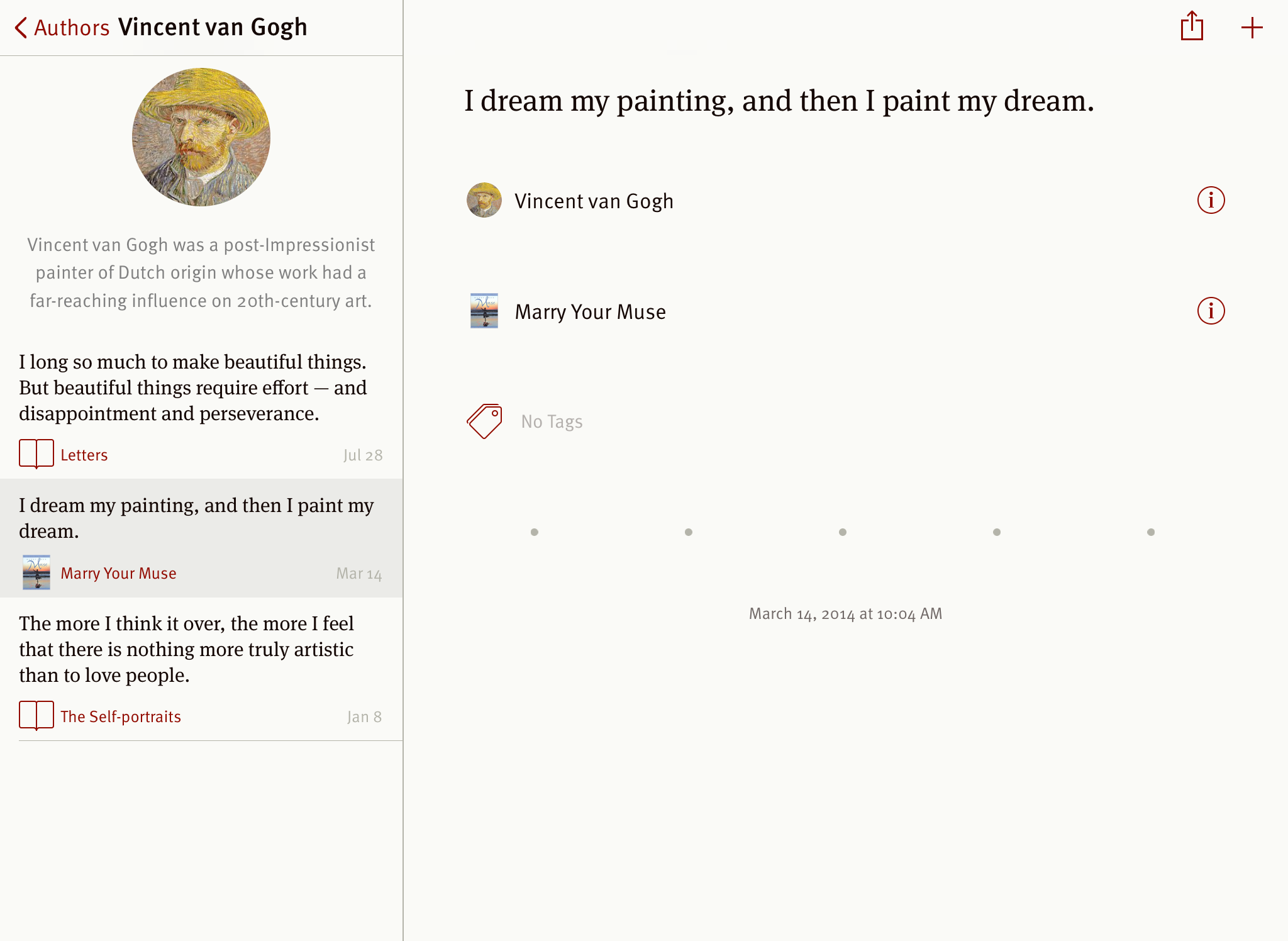
  • Tap into any author or source from the quotes screen to see more quotes from them
  • Discover and save random quotes from the app’s main screen
  • Share quotes to Tweetbot, Tumblr, and Day One
  • Improved Auto-Detection of quotes on your clipboard (including from iBooks)
  • x-callback-url support for the Quotebook URL scheme so other apps can add quotes seamlessly
  • Simplified settings

As you can see from the above list, the update is indeed a big one. I must admit the most pleasing thing I have found in using Quotebook 3 in the couple of days since the update is the fact that it works equally as reliably and consistently as the previous version, but is faster, looks better, and I agree, has a little more personality, to quote the developer. Although I guess consistent and reliable only gets you so far, as (searches Quotebook):

“Consistency is the last refuge of the unimaginative.”
— Oscar Wilde

See – there when I need it, just like I said.

54

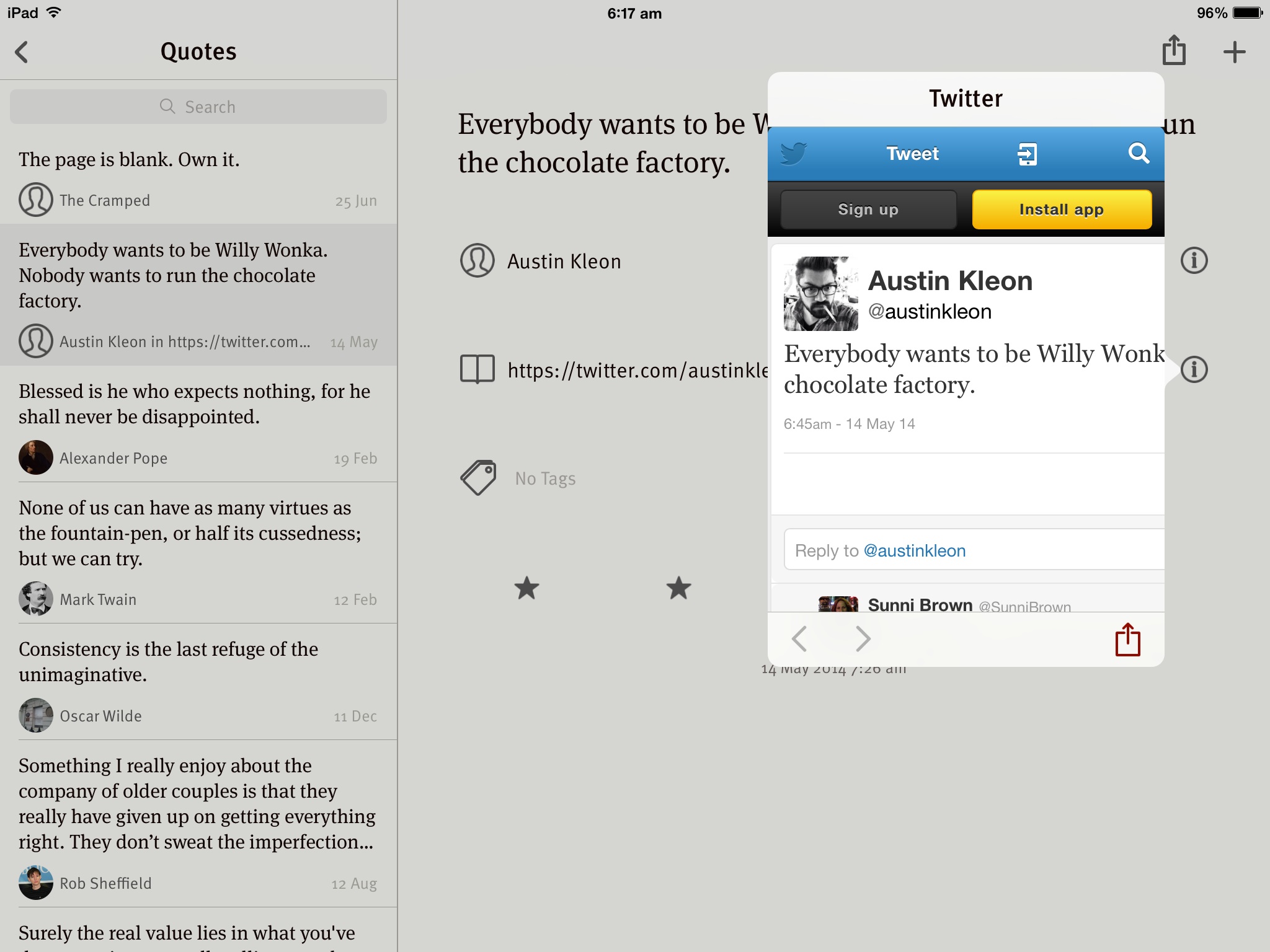
Probably my favourite aspects of the update include the complete overhaul of the user interface, which is elegantly minimal; direct sharing to Tweetbot and Day One through the standard sharesheet; the ability to see information and other quotes from an author, or the information popover from the source (see screenshot below); also, the functionality of the clipboard auto-detection seems to have improved. A nice touch is also the ability to save random quotes now appearing on your main screen.

Quotebook_pop

Quotebook 3 is a beautiful, yet highly functional app which appears to be in for the long haul. Lickability have added enough bells and whistles with the new update to please many a power user, however have repackaged and improved the robust and delightful features that worked elegantly and efficiently all along.

3

Developers say many things in press releases, however on this point from Lickability I most certainly concur:

Lickability has been and will always be concerned with all the small details that make apps great.

Must save that quote somewhere…


Also be sure to check out the review of Quotebook 3 by Federico Viticci at Macstories.

Quotebook 3 is available on the App Store for AUD$6.99, and is a universal app for both iPad and iPhone.

Analogue and digital: an equal partnership

Digital_analogue

I recently published a post on the merits of improving my handwriting or “penmanship”. This had the flow on effect of triggering some consideration about my note-taking in general, which commonly occurs in both digital and analogue (hand-written) forms.

Digital or Analogue – Why not just choose one?

Why not simply go all in with handwritten notebooks, a manual calendar or perhaps a Bullet Journal type system? I don’t believe this to be possible in the way I like to interact with my work, hobbies, thoughts, and just about everything I either enjoy, or am required to accomplish on a day-to-day basis. In reading that sentence over, more accurately, I choose not to work this way.

I’m sure if I wanted to, I could “go off the grid”, however I enjoy using my digital tools as much as I do my analogue ones, having put a good deal of effort into setting things up so they work well together, as I have seeking out great pens and notebooks. I believe the two can co-exist happily, complementing each other, rather than requiring isolation or resulting in duplication. Just the other day for example, working through a tutorial on the longer form writing Mac application Scrivener, it seemed appropriate to jot down the key points in my Field Notes Arts Edition.

If I am entirely honest, with so much more to learn, I would be pretty disappointed not to pursue greater integration and understanding of my technology, or ongoing expansion and evolution of my pen and paper collection.

Getting the Job Done

ShelterwoodFirst and foremost, the essence of any tool is that it does what you require of it. For note-taking, whether a list, outline, mindmap or draft blog post – it gets the job done with a minimum of friction. True, certain situations dictate only certain tools can be used. For example I cannot check the weather forecast or send a text message with pen and paper (or perhaps I can).

The first half of this very post was drafted on my iPad mini with Editorial, an app which constantly amazes me with its features and automation, though I probably use less than a quarter of them. The latter half of the post with pen on paper, upon which I had written:

…as I sit here in the pre-dawn lamp glow drafting this post in longhand, I cannot think of a more pleasant sound than the Pelikan nib gliding across this Rhodia paper.

Agreed. Probably a little more than simply getting the job done.

The Appeal?

Day_One_SS_1

Day One

Hardware design of both mobile devices and Macs is certainly important, however for most of us remains fairly stable over extended periods of time, and is something I probably take for granted. Thinking about why I enjoy my digital tools, it is generally in terms of the user interface and software features. The beautiful way Day One captures and presents moments in my life; the power of Drafts or nvALT in capturing and processing notes; the automation of Editorial; or elegant simplicity of Vesper.

My analogue tools? More deeply engrained in the senses. Sounds, textures, colours. The feel of blank paper and how this changes when full of words. The wear patterns of a Field Notes notebook by the time the last page rolls around. Once archived, the joy of page one in the next. The different weight and balance, finish or colour of a new pen. The sound of a pen across a page as it crafts a line with the purest ink.

Wrapping Up

The fundamental question for me, is whether or not there is joy, delight or inherent satisfaction in the way I interact with my surroundings or tools, be they analogue or digital.

In the tools I choose to use, the answer is yes, and applies equally to a powerful but beautifully designed iOS or Mac application, as it does an exquisitely honed fountain pen nib gliding across the finest paper.

Some have suggested with technology marching on (which I readily embrace), the death of the pen is nigh.

To those who know the truth? We just post the cap and write on. Smiling.
WWDC 2014 Keynote

It was about this time last year my interest in all things tech took an upward turn. Having just started ‘blogging’, I was keen to find ways of improving my writing workflow, and given my use of Apple’s iPhone and iPad, looked forward to hearing about the changes looming in iOS 7, which I would be viewing on these devices quite often from that point onwards. Overall, despite a few bugs and crashes, I have been happy with what iOS 7 brought us.

Expectations for the announcements at Apple’s Worldwide Developer Conference (WWDC) this year? To be honest, nothing specific other than a keen interest in what Apple has planned for the future. After buying a Mac late last year, my entire (personal) digital existence now lives within this ecosystem.

OS X – Yosemite

Having tuned in early this morning (Australian time) to the live stream of the Keynote presentation kicked of by Tim Cook, the main focus was on both consumer and developer updates to both the OS X and iOS platforms.

We saw the introduction of OS X 10.10 “Yosemite” (available as a free update later in the year), continuing the new naming convention after Mavericks was introduced last year. Featured were a redesigned interface (translucent background, new app icons and sidebars); updates to Safari, Mail, Calendar and Spotlight; a today view in an expanded Notification Center which now has support for widgets; the ability to make phone calls and SMS from your Mac, along with improved interaction with iOS devices. The improvements to iOS communication include having AirDrop now active between Macs and Mobile devices (finally), and iCloud drive with the ability to sync folders on the Mac to iOS and Windows (think Dropbox).

iOS 8

As far as iOS 8 is concerned, as expected, no great change to the interface itself, however some interesting updates were evident to text input, in the form of Quicktype predictive typing and the ability to add system wide third-party keyboards. Also seen were improvements to Spotlight search and Notifcation Center, in line with the changes in OS X; better gestures for Mail; new Message thread features; a Family Sharing feature (to include Apple IDs) and the integration of iCloud drive as note above. Other features that seem very promising include “Handoff” which allows you to pick up on your Mac exactly where you left off on your mobile device, and the “Extensions” feature, allowing developers better access to inter-app communications. Two other areas Apple were rumoured to be exploring were confirmed, with both HealthKit (Personal health and fitness monitoring) and HomeKit (home automation) also shown to developers.

The above is just a small sample of what was presented this morning however I’m looking forward to seeing how these changes might improve the way I do things on both platforms, in particular, how the new integration features will assist in communication between the mobile and desktop operating systems.

A great roundup of this mornings events can be found at the The Unofficial Apple Weblog, and I believe the boys on the Reckoner Podcast will be discussing what was unveiled further this evening.

In Use – Vesper 2.0 for iPhone

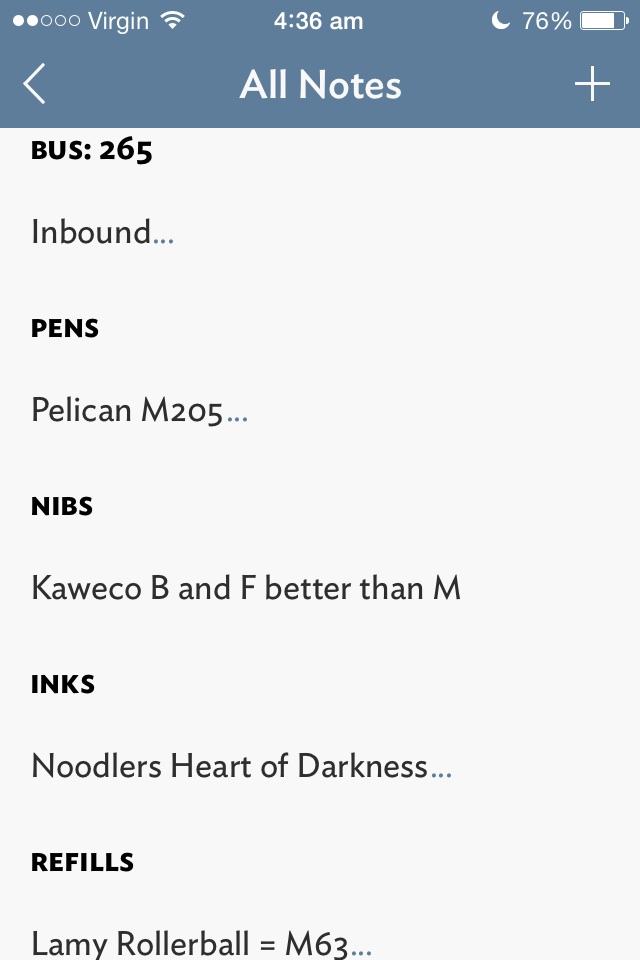
Although I use Evernote for storage and archiving of longer notes, articles, web clippings, PDF’s and the like, many quick notes are just that, short and quick. The type of notes which don’t require any further action, sharing or archiving until I need to refer to them again. When I’m standing in a shop, I don’t want to be searching through my filing cabinet for the pen refill model number, I simply need the notebook in my back pocket where this information is written. To me, if Evernote is my digital filing cabinet, Vesper is the digital notebook in my back pocket.

Vesper_Notes_ListVesper_home

I love Vesper, and it has been on my home screen for the past 4 months or so, being a fast and reliable way of taking quick notes with a minimum of fuss inside a great looking interface. If we go back to the notebook example above, Vesper is the book you grab when you may not necessarily need to write down a note, but simply enjoy writing in the pages with your favourite pen anyway. Yes – in my opinion the user interface is that good. I have never been a fan of Apple’s native Notes app, pre or post iOS 7, and if you are in any way similar, go and have a look at Vesper.

Vesper_settingsVesper_in_settings

Vesper supports tags, photo and text notes, has gesture based (L swipe) archiving, and the usual email/message or copy all actions. Notes can also be reordered or “prioritised” through a tap and hold to drag up or down the list.

Vesper_NoteVesper_Share

Have I mentioned Vesper is a beautiful app? From the design, colour scheme and font (love the smallcaps option for note titles), not to mention the understated icon on my home screen. The icon, incidentally, sits right beside Drafts, another app I use extensively for longer form note taking (e.g. notes while listening to podcasts; email drafts), which usually end up being archived to Evernote, Dropbox, or sent to other apps such as Omnifocus for further action. Of course, I acknowledge a great looking app is virtually useless if it does not have the functionality you require, however for the times I use Vesper, I don’t need anything else – and that is precisely it’s strength.

Why write about Vesper now? A recent free update to the app has now added Vesper Sync for your notes, a missing feature pointed out by any as a downside of the original release. Although the sync is essentially a back up as there are no Vesper iPad or Mac apps yet, Vesper will run at 2x on the iPad. Set up for a free (optional) Vesper Sync account is a simple process using an email address and password, and you are up and running. For those suspicious of a “free” syncing service, John Gruber on the Vesper blog:

Vesper Sync is not a free lunch, because Vesper is not a free app. Sync should be a feature, not something you have to pay extra for.

Although my note collection is very small, (I tend to delete or amend the 20 or 30 notes I have on the go), the syncing is fast and unobtrusive, both key aspects for my continued use of Vesper as a primary quick note/recall app (from what I understand the app scales well with larger note collections). This added feature now bodes well for the development of companion apps, and I believe the Mac app is first in line.

Read more on Vesper Sync and future plans on the Q Branch blog, and you can follow Brent Simmons engineering diary at Inessential.

Vesper 2.0 is currently available on the iOS App Store for AUD$6.49 (or the update is free if you already own the App).